

 MCP
These are Trophy’s legacy, template-based push notifications, sent from fixed triggers. For users in the agentic messaging cohort, agentic messaging replaces them: lifecycle agents write and send personalized push notifications instead. Both send through the same push providers, which you set up on the channels page.
Types of push notifications
Trophy supports 4 types of push notifications, each of which is designed to suit a common engagement scenario. All push notifications are optional, but all four can be used simultaneously and can be controlled from the Push Notifications page in the Trophy dashboard.- Milestone notifications are sent to users each time they complete a Milestone.
- Recap notifications are sent to users on a pre-defined frequency to summarize progress. Recap notifications can be configured to be sent daily, weekly, monthly or yearly depending on your use case.
- Reactivation notifications are sent to users after they become inactive with the goal of bringing them back to your app.
- Streak notifications are automatically sent to users reminding them to extend their Streak.
Supported channels
Trophy sends push notifications through Apple Push Notification Service (APNs), Firebase Cloud Messaging (FCM) or Expo Push Service. Push providers are shared with agentic messaging, so you only need to set them up once. Follow the supported providers guide on the channels page.Sending push notifications
Follow the steps below to start sending push notifications using Trophy.1
Set up channels
Configure a push provider by following the supported providers guide on the channels page. You’ll also find your providers on the Channels tab of the Push page.
2
Add templates
Trophy provides a default template for each type of push notification that Trophy supports.On the configure page, each notification type has its own section. Add templates under the relevant type.Follow the guide on designing push notifications to learn more.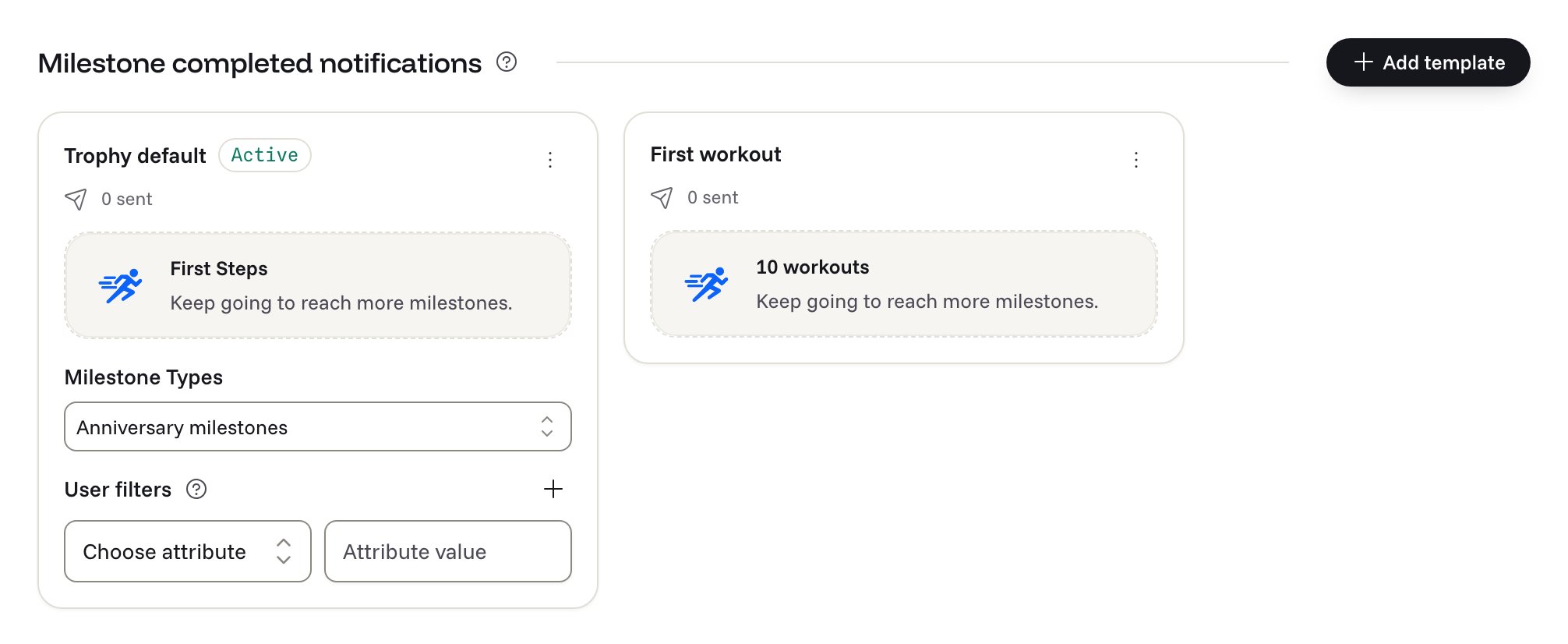
3
Associate device tokens
Trophy needs to know the unique tokens assigned to each user’s devices to route notifications to them. Associate
deviceTokens with each user when you identify them or send metric events. See device tokens for examples.4
Activate templates
The last step is to activate a template within each type of push notification section that you want to send.On the configure page, activate one template in each type section you want to enable. Once activated, Trophy will start sending push notifications automatically.
Designing push notifications
By default, Trophy provides a template for each type of push notification as a good starting point. The default templates can’t be changed, but you can duplicate and customize these as you wish.Template structure
Each push notification has a title and body, and Trophy’s no-code push notification template editor allows you to fully customize both fields.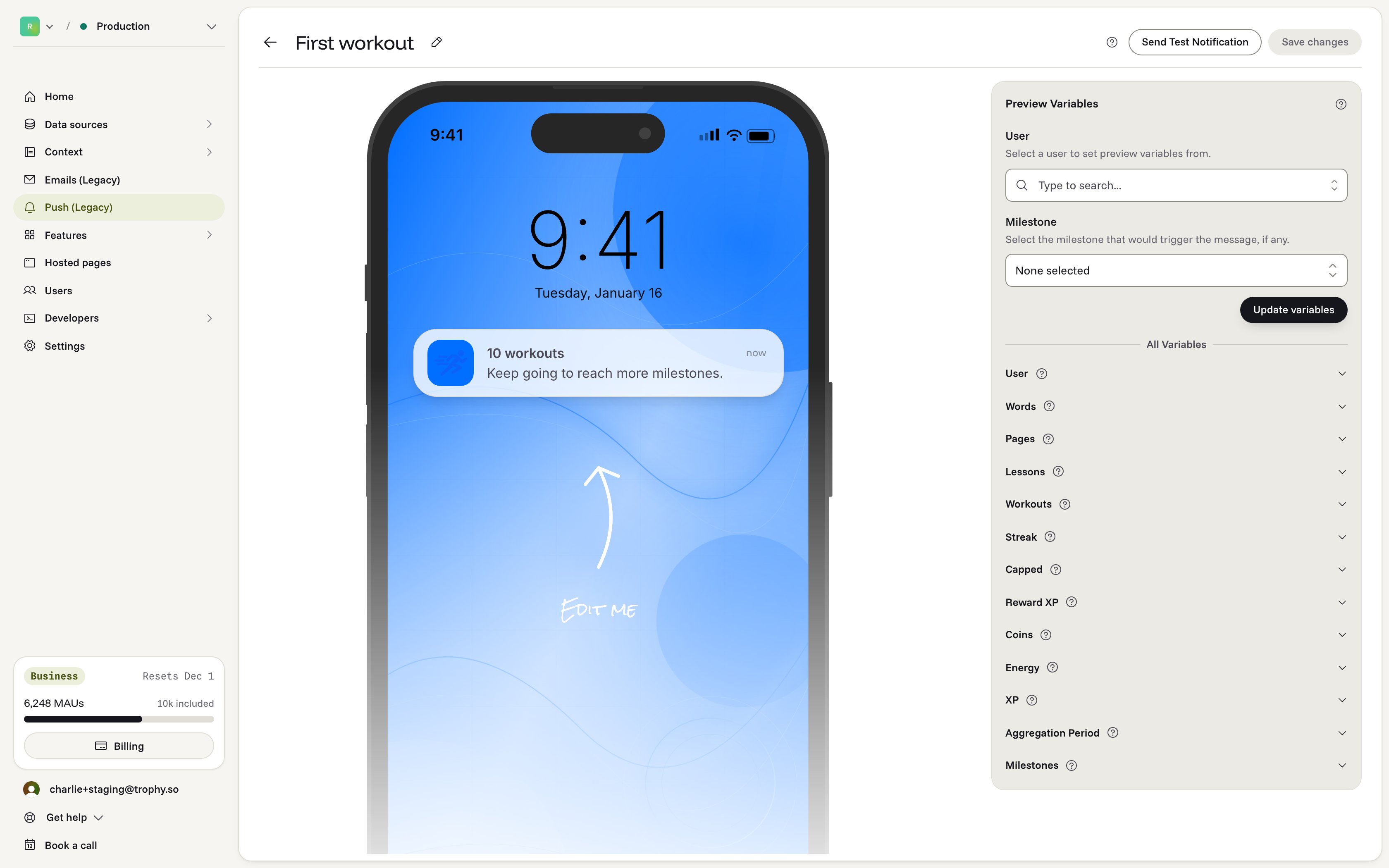
Using variables
Trophy provides an expansive set of variables that can be used to insert highly relevant and personalized data into your push notifications. Variables can be inserted by typing@ in the title or body of any push notification, and searching for your chosen variable.
This will open up the variable editor window where you can configure variables as in the demo below. You can also test different variable values and how your template behaves in different scenarios by using the preview sidebar.